
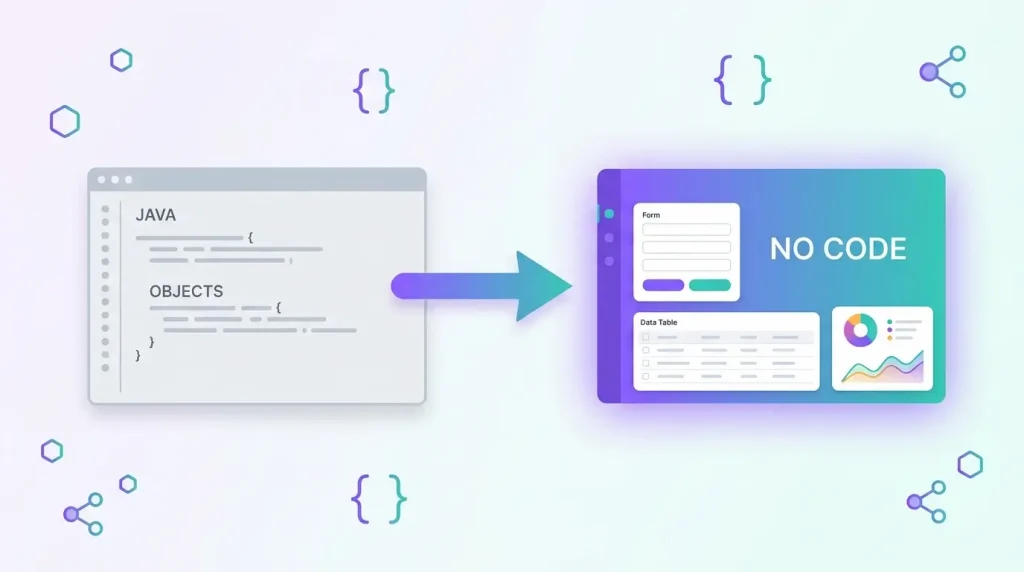
Most teams reach for Java the moment a business user asks for “a small app”: an intake form, an asset register, a request tracker. On Liferay DXP, that reflex is often unnecessary. Liferay Objects let you model data, build forms and views, add approval workflows and expose REST APIs from the UI, without writing or deploying a module. This Liferay Objects tutorial walks through what Objects are, how to build one, where they stop being enough, and when to bring in developers.
What are Liferay Objects?
According to the official Liferay documentation, Objects let you build and deliver applications without writing code or deploying modules. Each object is integrated with Liferay’s core frameworks, and the feature requires Liferay 7.4 or later.
In practice, an object is a data model you define in the Control Panel. When you publish it, Liferay creates the database table, a Headless REST API for CRUD operations, a collection provider and a page widget, so the new application is usable immediately.
The documentation distinguishes three kinds of objects:
- Custom objects: created from scratch and fully customizable.
- Modifiable system objects: created by Liferay and highly customizable (cookies and Data Set entities are examples).
- Unmodifiable system objects: built on legacy backend frameworks, such as Users, Organizations and Commerce entities. They can be extended in some ways, but far less than custom objects.
This article focuses on custom objects, the ones you create yourself.
What you get without writing Java
Objects are more than a table editor. The documentation lists the following building blocks, all configurable from the UI:
- Fields and relationships to other object definitions.
- Layouts and views that control how fields and relationships appear when creating entries and on the application page.
- Validations to enforce data rules.
- Actions that run under specified conditions.
- Workflows that add a review and approval process to entry creation.
- Forms mapped to object fields to collect user input.
- Headless REST APIs, generated automatically for every object.
- Display options through Page Fragments, Display Page Templates and site widgets.
- Permissions integration for the application and its resources.
Every object also gets default fields: Author, Create Date, External Reference Code, ID, Modified Date and Status. The External Reference Code is particularly useful when you sync data with another system.
How to build your first object
1. Create the draft
Open the Global Menu, go to Control Panel, then Objects. In the folder you want, click Add, then enter a Label, a Plural Label and an Object Name. Note that the Object Name cannot be changed after you publish, so choose it carefully.
2. Add fields, relationships and layouts
A new draft is blank. You add fields, then optionally relationships, layouts, actions, views, validations and state flows. Changes to fields, relationships and layouts save automatically, but unsaved changes on the Details tab are lost if you switch tabs.
3. Set the scope and details
On the Details tab you choose the entry title field, the scope, the panel link and feature toggles. The scope is either Company (the default, with data stored per Liferay instance) or Site (data stored per site). Decide this early: after publishing, the name, scope, account restriction (if enabled) and entry translation can no longer be changed, and some field options are locked.
4. Publish
Publishing activates the application. From that point you can manage its permissions like any other Liferay resource, and consume its Headless API from other systems. Users need the Object Folder View permission to reach the Objects UI (2023.Q4 and Portal GA102 onwards).
Automating behaviour with object actions
Actions are where Objects start to feel like a real application platform. The documentation lists five action types:
- Notification: sends an email or user notification from a predefined template.
- Add an Object Entry: creates entries in an active object.
- Update an Object Entry: updates fields in the current entry.
- Webhook: delivers a payload to a URL.
- Groovy Script: executes a Groovy script.
Actions have one of two triggers. Automatic actions run when Liferay detects the object entry event and the predefined conditions are met. Standalone actions appear in the entry’s Actions menu, get their own generated headless API, and must be run manually, although they can be mapped to a button fragment.
One caveat matters for architecture decisions. The documentation states that Groovy script actions are only available for Liferay PaaS and Liferay DXP Self-Hosted, and that since DXP 2024.Q3 scripting is disabled by default (you can enable it under System Settings, in the Script Management entry of the Security category). If you run on SaaS, plan on webhooks and the other action types instead. Our guide to hosting models, Liferay SaaS vs PaaS vs Self-Hosted, covers how this choice affects what you can customize.
Good use cases for Objects
Objects fit well when the problem is mostly data plus process:
- Internal request and approval workflows (equipment, access, purchase requests).
- Registers and catalogues, such as asset lists, partner directories or training records.
- Intake forms whose submissions must be stored, reviewed and reported on.
- Lightweight master data that other systems read through the Headless API.
- Prototypes you want to put in front of business users within days rather than sprints.
The practical benefit is speed of feedback. A business analyst can iterate on fields and layouts directly with stakeholders, and developers are only involved when a genuine gap appears.
Where Objects stop and custom code begins
Objects are not a replacement for development. Expect to need custom code when:
- Business rules are complex, cross several systems or need transactional guarantees beyond what actions provide.
- You must customize the behaviour of unmodifiable system objects beyond the supported extensions.
- The user interface goes beyond what layouts, views, fragments and display page templates can express.
- Integration requires protocols or processing that a webhook or the Headless API cannot cover.
In those cases, the modern approach is usually to keep Objects as the data and API layer and add logic around them. We compare the extension options in Liferay Client Extensions vs OSGi Modules. For heavier needs, our work on custom OSGi modules and portlets for Liferay DXP shows what a fully coded extension looks like.
Practical tips before you start
- Model before you click. Name, scope and several field options are locked after publishing, so agree the data model first.
- Pick the scope deliberately. Company scope stores data per instance, Site scope per site. Multi-site organizations should think about reporting needs.
- Use External Reference Codes for any integration with an external system.
- Treat permissions as part of the design. Objects integrate with the permissions framework, so define roles early.
- Check your hosting model before relying on Groovy actions.
Frequently asked questions
Which Liferay versions support Objects?
The official documentation lists Liferay 7.4 or later as the requirement. Some capabilities appear in specific quarterly releases, for example the friendly URL pattern for entries is documented for DXP 2025.Q3 and later, so always check the documentation for your exact version.
Do Liferay Objects really need no code?
Creating objects, fields, layouts, views, workflows and most actions is done from the UI. Groovy script actions and any external integration through webhooks or the Headless API involve some scripting or code on your side.
Do Objects generate REST APIs automatically?
Yes. Publishing an object creates a Headless API for CRUD operations, and standalone actions get their own generated headless API.
Can I change an object’s name or scope after publishing?
No. After publishing, the name, scope, account restriction (if enabled) and entry translation cannot be changed, which is why the data model should be agreed before you publish.
Can I use Groovy scripts on Liferay SaaS?
According to the documentation, Groovy script actions are only available for Liferay PaaS and Liferay DXP Self-Hosted, and scripting is disabled by default since DXP 2024.Q3.
Next steps
Objects can remove a lot of custom development, but only if the data model, scope, permissions and integration points are designed properly from the start. If you are deciding where low-code ends and engineering begins on your platform, see our enterprise portal services for Liferay and our Liferay expertise.
Planning a Liferay upgrade? Get a free technical assessment.